
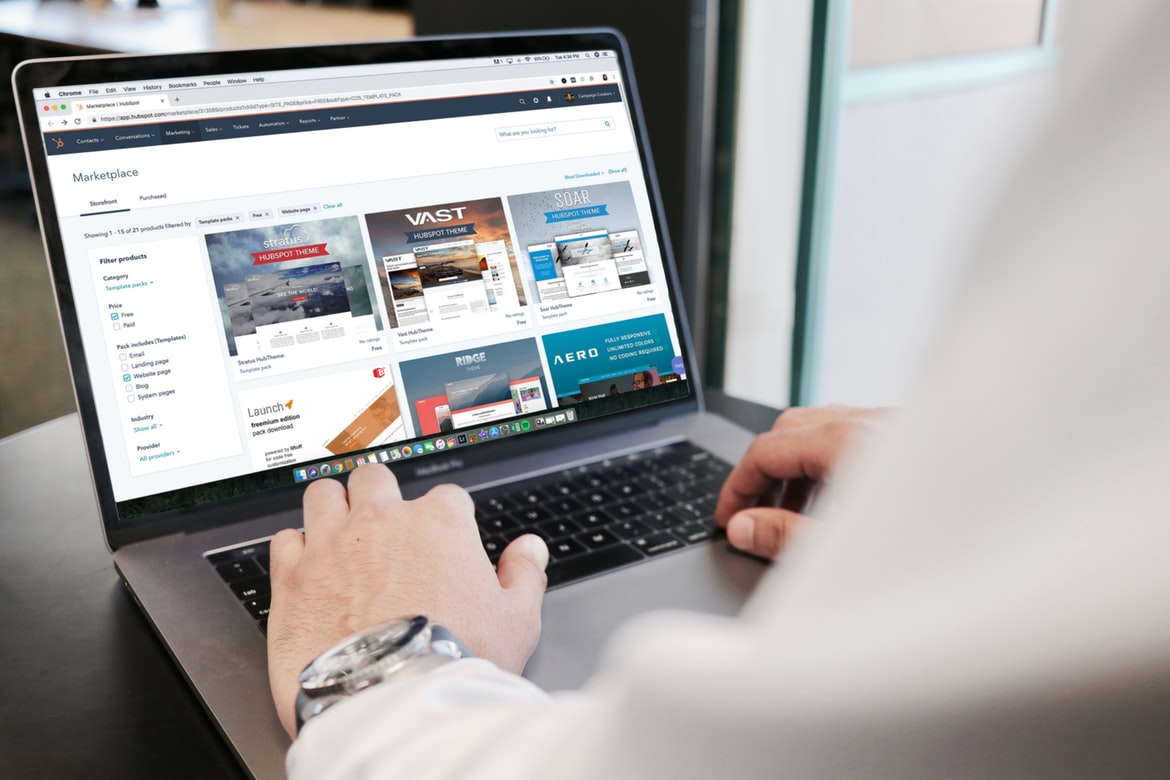
You don’t need a design degree to create professional-looking graphics anymore—but you do need the right tools. Non-designers often struggle with color matching, layout balance, and fonts that “feel off.” The good news? Today’s online design tools are built to guide you step by step, offering drag-and-drop simplicity and auto-alignment features that make your projects look professionally done. This guide covers the best tools for anyone who wants to design like a pro without paying agency prices or fighting through steep learning curves.
1) VistaCreate – Quick Visuals for Business Owners on a Budget
For small business owners or freelancers who need polished visuals regularly, VistaCreate (formerly Crello) is an affordable and easy-to-use platform with a robust free plan. It’s designed around business use cases—think promotional posts, ads, menus, and brand kits.
VistaCreate’s strength lies in its animated templates and layered objects, which make even static posts look dynamic. You can also upload your logo and apply it to all new designs with a single click, ensuring brand consistency without manual effort.
Key benefits:
- Business-oriented templates for marketing and events.
- Animation tools and video templates with drag-and-drop editing.
- Built-in storage for brand assets (colors, logos, fonts).
- Cross-platform sync—design on desktop, tweak on mobile.
Pro Tip: Set up your “Brand Kit” first. That way, every time you start a design, VistaCreate automatically applies your colors and logo. This turns 30-minute projects into 10-minute tasks—and keeps your visual identity consistent across campaigns.
2) Adobe Express – The Versatile Creative Powerhouse for Beginners
Adobe Express is a top choice for non-designers because it takes Adobe’s legendary design engine and simplifies it into an intuitive, web-based format. The platform supports everything from social media graphics to posters, resumes, and classroom materials—all built on customizable templates. The interface is clean and offers pre-sized layouts, so you never have to guess about dimensions.
Why it’s great for non-designers:
- Template-first workflow (pick a design, edit instantly).
- AI-assisted tools for color palette matching and image resizing.
- Auto-alignment that helps you center or balance elements easily.
- Free access to a huge library of stock photos, shapes, and fonts.
Pro Tip: Start every project by choosing a template that’s already close to your goal—then customize fonts and colors to match your personal or brand style. This shortcut keeps your results cohesive and fast. Adobe Express is ideal for entrepreneurs, students, or small business owners who want great-looking materials in minutes.
3) Snappa – The Fastest Design Platform for Social Media Graphics
Snappa focuses on simplicity and speed for digital marketers and content creators. It’s especially useful for non-designers managing multiple platforms, since it has one-click resizing tools that adjust your design for Instagram, Facebook, X, and LinkedIn in seconds.
Its free plan includes thousands of templates and high-resolution downloads, and the drag-and-drop editor keeps your workflow clutter-free. The built-in stock photo library from Unsplash saves time hunting for images elsewhere.
Why teachers, bloggers, and marketers love it:
- Automatic resizing for all major platforms.
- Simple layers and text-editing tools for fast composition.
- Crisp templates tailored to engagement-based content.
- Team-sharing features for collaborative editing.
Pro Tip: Create one master social graphic template for recurring posts (like weekly tips or event updates). Then, just swap out the photo and text for new content—no redesign needed.
4) Fotor – Perfect for Quick Edits and Photo-Based Designs
If your projects rely heavily on photos—like class photos, travel memories, or personal portfolios—Fotor is a lifesaver. It combines an easy design interface with powerful photo-editing tools, including background remover, retouching, and HDR effects.
Its “One-Tap Enhance” tool automatically fixes exposure and color, giving non-designers professional photo polish in seconds. Fotor also offers templates for collages, marketing materials, and cards.
Fotor highlights:
- Built-in photo editing and batch processing.
- Free templates for flyers, posters, and collages.
- AI-powered background remover and portrait retouching.
- Access to free stock imagery and customizable typography.
Pro Tip: Use the “Magic Resize” tool after creating one design. You can adapt the same visual to multiple purposes—flyers, banners, or web ads—without starting over, saving both time and effort.
5) Piktochart – Best for Presentations, Reports, and Infographics
When data storytelling matters more than decorative flair, Piktochart is unbeatable. It helps you visualize complex ideas with clean layouts and drag-and-drop charts. Teachers, consultants, and students use it to transform text-heavy reports into digestible visuals.
Piktochart offers free templates for infographics, reports, and slide decks, with built-in design grids that keep everything balanced automatically. It’s ideal for non-designers who need their visuals to communicate clearly rather than impress artistically.
Standout features:
- Infographic and presentation templates that follow visual hierarchy best practices.
- Built-in chart and map generators.
- One-click color theme customization for brand consistency.
- Automatic alignment guides to keep visuals neat.
Pro Tip: Start with Piktochart’s “Report” layout for lessons, pitches, or classroom projects. Replace their placeholder text with your notes—it’s faster than building slides from scratch.
6) Design Wizard – Professional-Looking Prints and Marketing Materials
Design Wizard is a strong choice for anyone needing printable marketing materials or classroom resources. The free version gives access to thousands of templates sized for posters, invitations, or business cards.
The platform’s greatest strength is its balance between simplicity and depth—you can create advanced-looking designs without complex layers or tools. With its premium image library and custom color palettes, Design Wizard is great for educators, small business owners, or event planners.
Unique features:
- High-quality print templates with commercial rights.
- Custom size creator for non-standard designs.
- Cloud storage for organizing multiple projects.
- Affordable upgrade options for premium assets.
Pro Tip: Use the “Color Palette Generator” to upload your logo or favorite photo. Design Wizard automatically extracts complementary shades you can reuse across multiple designs for visual harmony.
📩 FAQ for Non-Designers: Invitation Design Simplified
Designing invitations is one of the most common entry points for non-designers—it’s personal, creative, and deeply rewarding. The challenge? Balancing aesthetic appeal with clarity and print quality. The answers below tackle common questions about creating invitations that look professional without requiring design experience.
Q1: What’s the easiest way to make printable invitations online?
For a quick and professional option, Adobe Express offers templates for every occasion. You can customize fonts, add photos, and create printable invitations directly from your browser. It’s ideal for weddings, birthdays, or classroom events because the templates are sized correctly for both print and digital sharing.
Q2: Which platforms are best for elegant invitation templates?
Minted and Paperless Post both specialize in beautifully crafted designs created by professional artists. Minted is best for printed cards with premium paper finishes, while Paperless Post offers online and hybrid options that save on printing costs while keeping a formal look.
Q3: How can I make sure my invitations look professional even if I’m new to design?
Focus on consistency. Choose one font for headlines and one for body text, stick to a simple color palette (two or three hues), and leave plenty of white space. Avoid crowding your layout—simplicity always looks more polished.
Q4: Are there eco-friendly ways to design and share invitations?
Yes. Many platforms, including Paper Culture, specialize in eco-conscious printing with recycled paper and carbon-offset shipping. For purely digital options, services like Evite and Greenvelope let you create interactive invitations that require no paper at all.
Q5: What’s the best image resolution for printing invitations?
Always aim for at least 300 DPI (dots per inch) to avoid blurry results. If you’re using online tools like Adobe Express or Minted, their built-in export settings automatically optimize file resolution for printing—so you don’t need to adjust anything manually.
You don’t have to be a professional designer to produce visuals that look like they came from one. Each of these online design tools empowers non-designers to create confidently—without wasting hours or money. From Adobe Express for all-around design to Piktochart for infographics and VistaCreate for brand consistency, the key is starting small with tools that fit your needs. Build a habit of reusing your best templates, learning one shortcut at a time, and experimenting fearlessly. Over time, you’ll find your personal design rhythm—proof that great design isn’t about having formal training, but about choosing the right tools and using them with purpose.
